How to Export Chrome Bookmarks: Complete 2026 Guide
Why you might need to export your Chrome bookmarks
Maybe you're switching to a new laptop. Maybe you're moving from Chrome to Firefox, or you just want a backup sitting somewhere that isn't tied to one Google account. Whatever the reason, Chrome keeps every bookmark you've ever saved in a format that's easy to export — most people just never look for the button.
Do you even need to export? Check Chrome Sync first
If you're moving to a new device rather than a new browser, there's a decent chance you don't need to export anything. Chrome Sync (Settings → You and Google → Sync) automatically carries your bookmarks to any device signed into the same Google account. Export is really for moving between browsers, or for a standalone backup file — not for staying inside the Chrome/Google ecosystem.
How to export Chrome bookmarks (step by step)
On desktop (Windows, Mac, Linux)
- Open Chrome and click the three-dot menu in the top right.
- Go to Bookmarks and lists → Bookmark Manager (or press Ctrl+Shift+O on Windows/Linux, Cmd+Option+B on Mac).
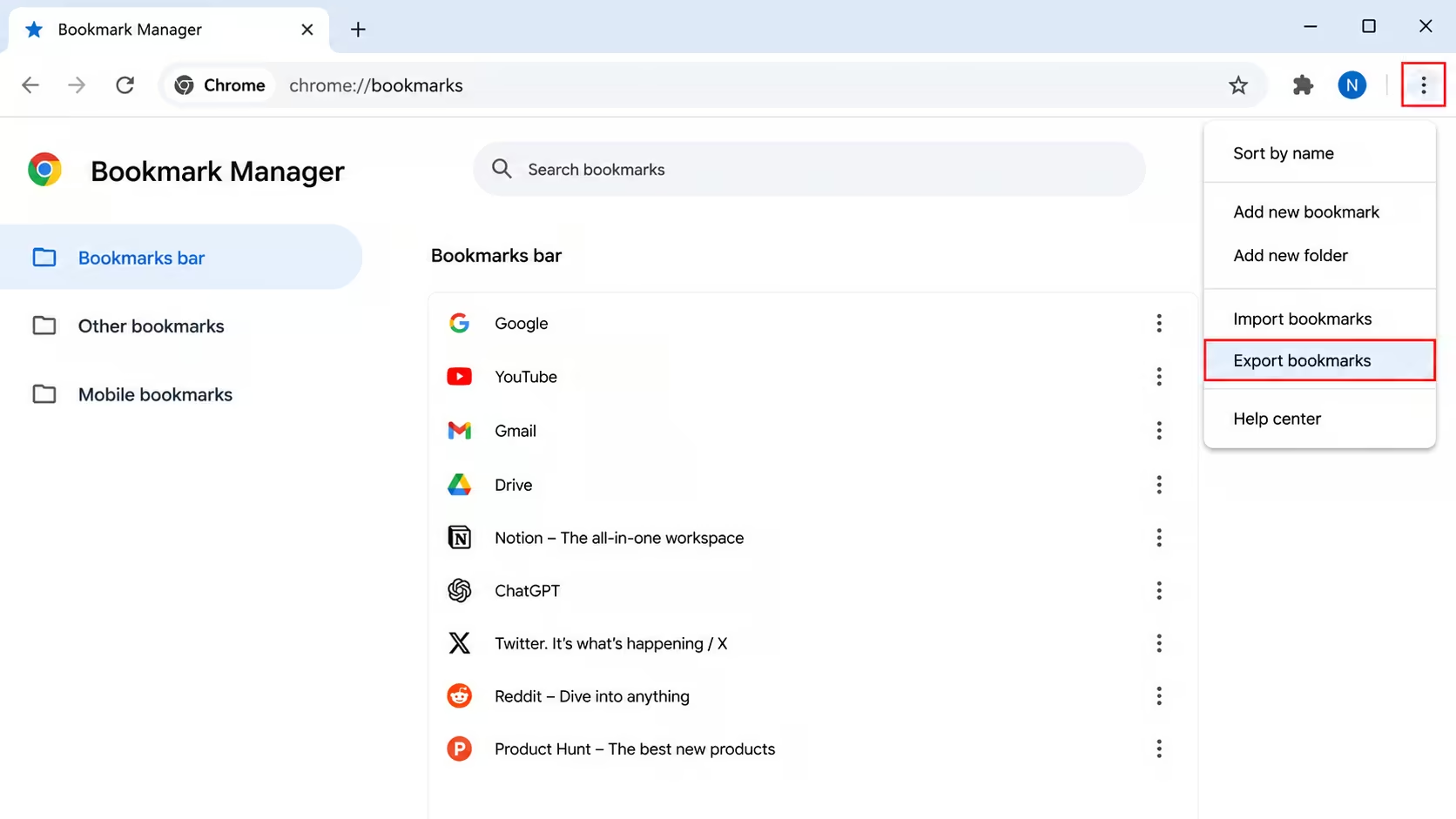
- Click the three-dot menu inside the Bookmark Manager itself.
- Select Export bookmarks.
- Choose where to save the file — Chrome names it something like bookmarks_7_13_26.html.
On Android and iPhone/iPad:
Chrome's mobile apps don't have a direct export button. Sign into the same Google account on a desktop version of Chrome, let your bookmarks sync, then export from there.
Where the exported HTML file goes, and what to do with it
The exported file is a plain HTML document — any browser can read it. Import it into another browser (every major one has an "import bookmarks from HTML file" option), keep it as a static backup, or open it in a text editor to see the raw link list. What you can't do: search it, tag it, or have it update itself.
Exporting your passwords at the same time
A huge number of people looking for this exact export also want their saved passwords, since switching computers usually means wanting both at once. Chrome keeps these separate: go to chrome://settings/passwords, click the three-dot menu next to "Saved Passwords," and select Export passwords. One important safety note: this produces a plain, unencrypted text file of every saved password. Import it into your new browser right away, then delete the file — don't leave it sitting in Downloads, and never email it to yourself.
The problem with exported bookmark files (they go stale fast)
The moment you export, the file stops reflecting reality — nothing added afterward is in it, and nothing broken gets flagged. If you bookmarked something on social media rather than a plain article, this method doesn't back up the actual post either, just a URL that assumes the content is still live.
A better way — back up bookmarks automatically with Savebase
Savebase's browser extension for Chrome, Firefox, and Edge saves a bookmark the moment you tap it, no manual export required, and keeps syncing as you go. For links from X, Instagram, TikTok, YouTube, Reddit, LinkedIn, Bluesky, Threads, Facebook, Pinterest, or Truth Social specifically, Permanent Media Backup stores the actual image or video in your own private storage — not just the link. Free to start.